How to use the OBS stats writer
An uncommon request from a user on our Discord triggered this feature. If you stream your tournament on a platform like Twitch or Discord and use OBS for recording, you can display tournament stats on your stream by reading them from a text file. This tutorial shows how to set that up. Note: this only works on Windows.
Enable it in the settings
First of all, you need to enable this. This feature isn’t available in the normal settings panel because it would only confuse users who don’t need it. You can regard this as an expert setting. To enable it, create a file "settings.xml" next to "hptm.exe".
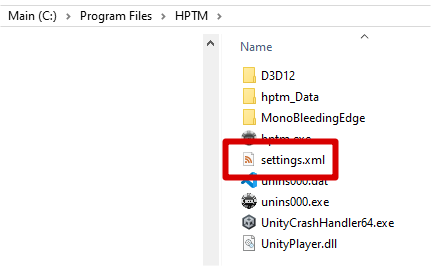
The file should contain the following:
<?xml version="1.0" encoding="us-ascii"?>
<DevSettings xmlns:xsd="http://www.w3.org/2001/XMLSchema" xmlns:xsi="http://www.w3.org/2001/XMLSchema-instance">
    <UseStatsWriter>true</UseStatsWriter>
</DevSettings>
If you then start HPTM, a stats.txt file will be written while a tournament is running.
Locate stats.txt
The stats.txt file can be found in this path: “%LOCALAPPDATA%Low/Avadev/HPTM/” (copy paste this in Windows explorer to open the folder). When a tournament is running, you’ll find a stats.txt file there. The file contains several stats which make it possible to use them in OBS. Here I document what info is written on what line:
34          --> # Entries
33          --> # Players
1           --> # Rebuys
0           --> # Addons
70000       --> Total chips
2121        --> Average stack
4           --> Current Level/Break
00:18:52    --> Remaining Current Level/Break Time
100/200     --> Current SB/BB
0           --> Current Ante
00:58:52    --> Time until break
01:06:08    --> Total running time
150/300     --> Next SB/BB
0           --> Next Ante
Set up in OBS
Next, you need to set this up in OBS. For example in this image below I have the SB/BB counter in the top right corner of my stream:

For this you need to add a Text (GDI+) source.
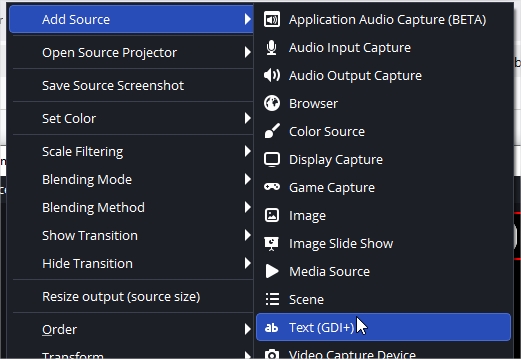
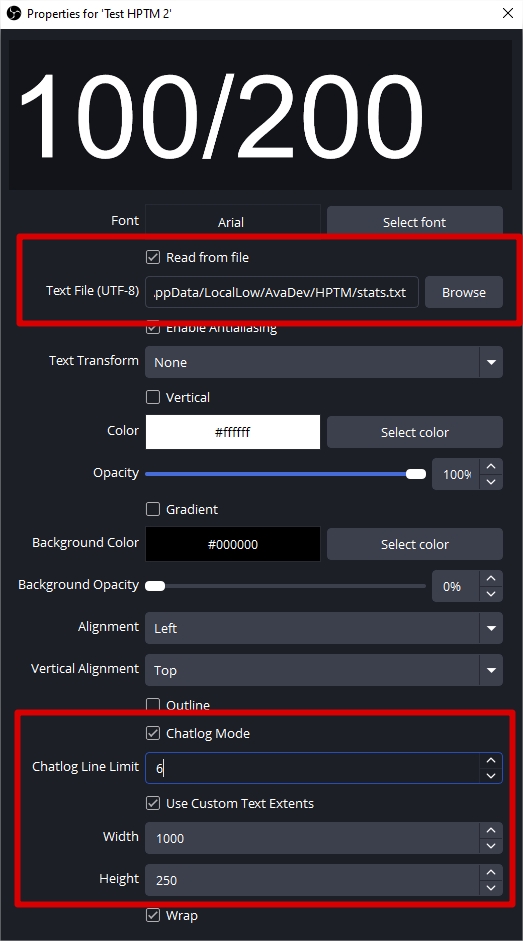
In the properties of the text element, toggle "Read from a file" and browse to the path of the stats.txt file.
Then, important, enable Chatlog mode.
The Chatlog Line Limit counts from the bottom of the file. Set it to the line number you want to display. With our example file, to get the current SB/BB line this needs to be 6.
Depending on the font settings by playing with the height you can make sure only one line of the text is being rendered. In our example a height of 250 does the trick. Setting it to 500 would show 2 lines.
And that’s it! Choose a nice font, style it to your liking, and you’re good to go!